Custom Search
Showing posts with label Desktop. Show all posts

Thursday, February 23, 2012

Hands On with the Cinnamon Desktop

As one of the GNOME users who's still fond of the old-school GNOME desktop, the recent release of Cinnamon 1.3.1 caught my eye. While it's not exactly GNOME 2.x, it's close enough that most users with a fondness for the 2.x days will feel right at home.

The GNOME Shell (and Ubuntu's Unity) are making lots of rapid progress, and they may (or may not) be the bee's knees for many users. I've been using Linux desktops for a long time now, so I'm probably not the target audience for GNOME Shell or Unity. Either way, I'd rather spend my time writing and learning about how to use server-side software than re-learning how to use my desktop.

The Linux Mint folks have been doing a pretty good job keeping the GNOME 2.x spirit alive, and Cinnamon is the latest project in that effort. Cinnamon is a fork of the GNOME Shell that's meant to provide some of the advanced features in GNOME 3.x, with a familiar desktop experience.

The 1.3.1 release came out on Monday, February 20th, so I decided now was a really good time to take it for a spin and see how it handles.

Using Cinnamon
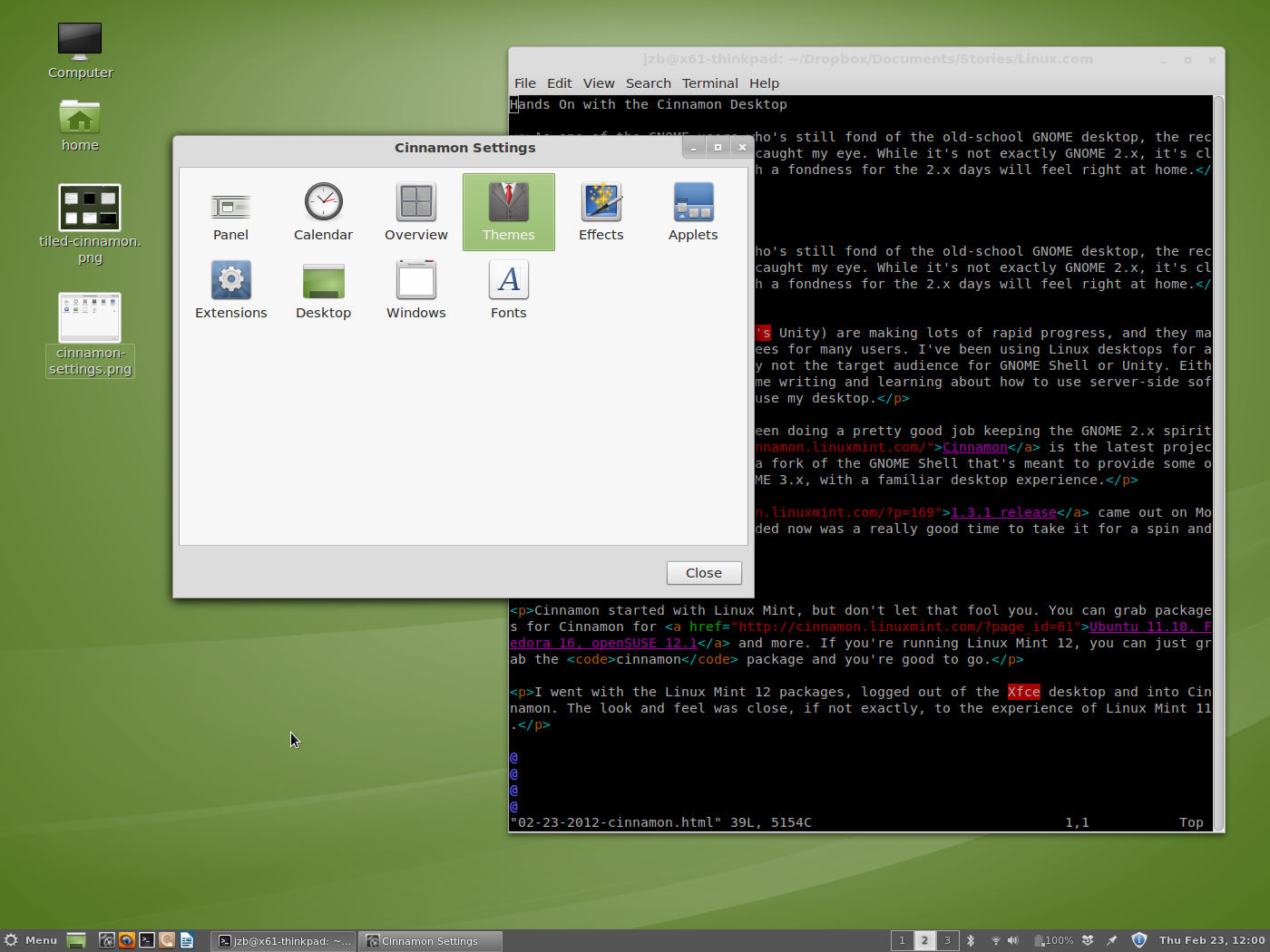
Cinnamon Desktop and SettingsCinnamon started with Linux Mint, but don't let that fool you. You can grab packages for Cinnamon for Ubuntu 11.10, Fedora 16, openSUSE 12.1 and more. If you're running Linux Mint 12, you can just grab the cinnamon package and you're good to go.

I went with the Linux Mint 12 packages, logged out of the Xfce desktop and into Cinnamon. The look and feel was close, if not exactly, to the experience of Linux Mint 11.

To start, I checked out the menu. It has a similar menu to the old Linux Mint menu for GNOME (much like the SUSE Slab menu), but search is now at the top and the "Places" and "System" menus are no longer there. On the left-hand side you now have Favorites, and then the applications by category and system tools and so forth.

It's pretty intuitive to add or remove applications to the favorites or panel, just right click on an icon and choose the appropriate action.

As you'd expect from a GNOME 2-ish desktop, you can put launchers and files on the desktop (if you like) and have the standard taskbar buttons for switching between programs.

Cinnamon does inherit GNOME Shell's Run Dialog (had by pressing Alt-F2, which isn't as full-featured as the GNOME 2x version. Yes, you can run apps by pressing Alt-F2 and typing out the application you want. But it doesn't have the drop-down menu with command history or the "run with file" option. It does have command history, though. You can just up-arrow to get the last commands you've typed in the Run Dialog.

You also get the Expose-like tiling feature with Cinnamon, which I find pretty handy. Unfortunately, unlike GNOME Shell, you can't drag apps between virtual desktops when you use the tiling feature. You can still move a window to a new/different desktop with Ctrl-Shift-Alt-right or Ctrl-Shift-Alt-left.
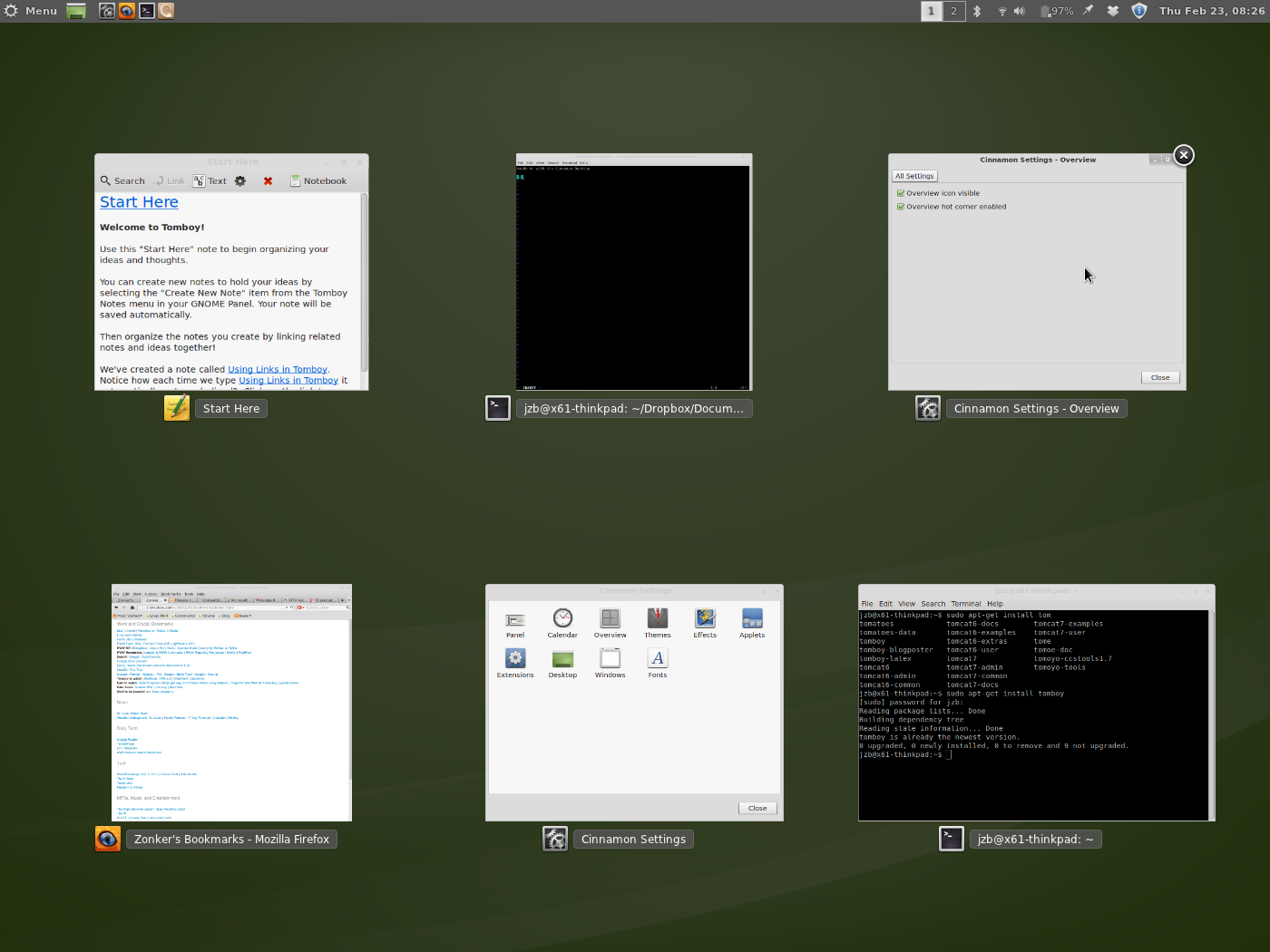
Cinnamon Application TilingThe panel can be configured at the top or bottom, or if you like you can even have a top and bottom panel. No left or right panels, though, which is not a big loss. The panel in GNOME 2 supported left or right-side placement, but things like the system tray and taskbar never really looked right when oriented vertically.

Cinnamon comes with a pretty decent selection of applets, though not quite on par with GNOME 2. For example, you have the window list to switch between applications using buttons on the taskbar, but the menu-based window list applet from GNOME 2 is missing.

The Cinnamon Settings app collects the settings for the panel, clock/calendar, window settings, desktop icons, and so on. You can't tweak quite as much as you could with GNOME 2, but it's a decent start. Note that many setting seem to require a restart, so if you apply a setting and nothing happens – odds are you need to log in and out again to see the change.

Overall, though, the Cinnamon project has done a really good job of replicating the GNOME 2 look and feel so far. I know lots of work is going into the project, so I have high hopes that it's going to continue improving and offering an alternative desktop for those of us who enjoy the old-school way of doing things.

If you'd like to contribute, Cinnamon is up on GitHub. So far, it looks like Cinnamon has a decent list of contributors. It should be interesting to see how it develops over the next few months.


busy

Tuesday, February 7, 2012

The Best Cloud Music Options for the Linux Desktop

Not that long ago, desktop Linux users were left out of most of the online music services. But these days, as the industry has trended towards cloud-based music services — from online "jukebox"-style file lockers where you store your own tunes all the way to subscription services that offer on-demand access to every track you can think of. Unfortunately, they all seem to want to run in their own dedicated application, and every audio player has plug-ins for a different subset of the available options. What's a music nut to do? Find out in this break-down of the cloud music tuning options available to Linux users.

Not that long ago, desktop Linux users were left out of most of the online music services. But these days, as the industry has trended towards cloud-based music services — from online "jukebox"-style file lockers where you store your own tunes all the way to subscription services that offer on-demand access to every track you can think of. Unfortunately, they all seem to want to run in their own dedicated application, and every audio player has plug-ins for a different subset of the available options. What's a music nut to do? Find out in this break-down of the cloud music tuning options available to Linux users.

Standing Alone

Most of the cloud services offer web-based playback that generally works on Linux browsers — Last.fm, Slacker, MOG, 8tracks, Qriocity, etc. But generally does not mean always. Users have reported trouble with Rdio, for example, even when using the same version of Firefox that functions without incident on other OSes. Consequently, if there is a standalone desktop application available, your odds of getting uninterrupted playback are better.

A few of the streaming music services offer explicit support for desktop Linux as a platform. Among the most prominent is Spotify, whose Windows client can run on WINE under the hood, and who offers a "preview" edition of a native Linux application. There is also an independent, open source Spotify library called despotify, for which several client applications are available, including CLI and ncurses-based front ends.

Grooveshark and WiMP users are in for a bit more of a hassle; both services offer a desktop application built on top of the Adobe AIR runtime (rather than the far more common Adobe Flash). Grooveshark's app enjoys a decent enough reputation for usability on Linux, but WiMP's is problematic. It is installable on 32-bit systems, but can take a bit of elbow grease.

On the jukebox side of the equation, Google's Google Music service uses the file-locker-based approach, in which you upload your content to the cloud service — but it does offer a desktop Linux client for managing your collection. Streaming playback is available via the browser; the service puts more emphasis is on mobile clients, for which a variety of individual playback apps are provided.

In contrast, Canonical's Ubuntu One music service (which also offers file-locker storage) works by synchronizing your files between your individual PCs and devices; you can use the desktop Linux client to download your files wherever you happen to be, but you then play them through an installed audio player.

Tunes at Your Fingertips

Where things start to get interesting, however, is with the applications that merge more than one of the isolated cloud services into a seamless playback experience.

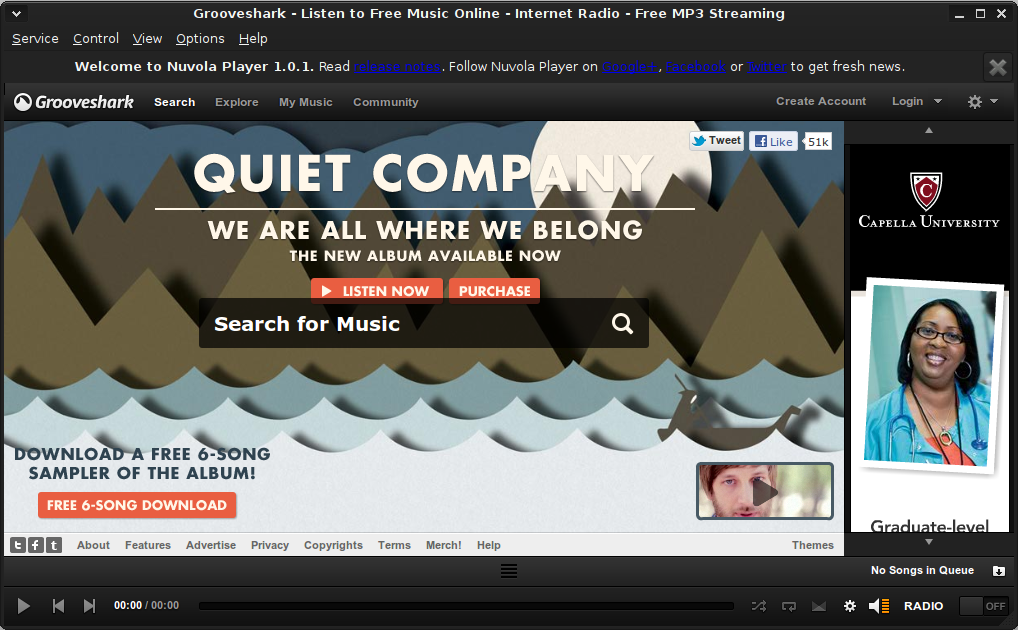
Here, the app at the forefront is Nuvola. Nuvola originated as an open source desktop music player for Google Music, but after it grew in popularity the team added support for several other cloud services. The current release is numbered 1.0.1, and supports Google Music, Grooveshark, 8tracks, and HypeMachine. The project releases builds only for Ubuntu at the moment, but there are installation instructions for Fedora and other distributions. The player relies on a fairly lengthy list of GNOME package dependencies, though, so if you primarily run KDE you may have to spend some time setting up the prerequisites.

Also worth checking out is Clementine. Clementine is based on Amarok (which makes it an excellent option for KDE users), but it adds support for several cloud music services that the upstream player does not have. You can access Spotify's "Premium" account content and Grooveshark's "Anywhere" plan. That's in addition to the plug-in based support for several services that Amarok already supports — meaning music stores and Internet "radio" stations where you do not get on-demand track selection.

A third option, open to Ubuntu users, is the Unity Music Lens. "Lenses" are special-purpose modules for the Unity environment that provide a searchable interface to a variety of data back-ends or "scopes." The Unity Music Lens provides rapid access to local media files by default, but you can also add scopes that hook directly into Grooveshark, Spotify, and other non-default audio players. There are numerous places from which you can get individual scopes, but a simple place to start is with the Scopes Packagers and One Hundred Scopes personal package archives (PPA).

There is not (yet) a similar service for those running the GNOME Shell interface, but you can add the GNOME Shell Mediaplayer extension. This extension adds a music applet to the top panel, and it supports all music players that adhere to the Media Player Remote Interfacing Specification (MPRIS) standard. MPRIS is a D-Bus interface to track metadata and playback controls, providing a shared API to a number of desktop environments. But because the aforementioned Clementine and Nuvola are both MPRIS apps, you will then be able to use the extension to access Spotify, Grooveshark, Google Music, and other online services.

Turn it Up

This list is comprised of a limited set of choices, to be sure. The fact is that most of the streaming services available today use Flash for their Web interface by design, in an effort to block users from accessing content in a manner that the company has not made it available. But if all you care about is on-demand access to a music library, the situation on the Linux desktop is far rosier today than it was a year or two ago. There are still some holdouts among the services, and geographically-based access restrictions mean there are different sets of options for almost every country in the world.

However, if the service you need is not yet supported by any of the options mentioned so far, the Nuvola player is the most likely candidate to add support for it. There is a well-defined JavaScript API and service plug-in framework, and because the project does not divide its attention between cloud services and other playback models, development is fast-paced. Sounds good, right?


Make Differences


Charities


Articles


Asbestos Deaths


Mesothelioma


Mesothelium


Deaths from Asbestos


Mesothelioma Advice


Mesothelioma Resources


Exposure to Asbestos


Auto Donation California


Car Donation Centers


Car Donation San Francisco


Vehicle Donation California

The Best Cloud Music Options for the Linux Desktop

Not that long ago, desktop Linux users were left out of most of the online music services. But these days, as the industry has trended towards cloud-based music services — from online "jukebox"-style file lockers where you store your own tunes all the way to subscription services that offer on-demand access to every track you can think of. Unfortunately, they all seem to want to run in their own dedicated application, and every audio player has plug-ins for a different subset of the available options. What's a music nut to do? Find out in this break-down of the cloud music tuning options available to Linux users.

Standing Alone

Most of the cloud services offer web-based playback that generally works on Linux browsers — Last.fm, Slacker, MOG, 8tracks, Qriocity, etc. But generally does not mean always. Users have reported trouble with Rdio, for example, even when using the same version of Firefox that functions without incident on other OSes. Consequently, if there is a standalone desktop application available, your odds of getting uninterrupted playback are better.

A few of the streaming music services offer explicit support for desktop Linux as a platform. Among the most prominent is Spotify, whose Windows client can run on WINE under the hood, and who offers a "preview" edition of a native Linux application. There is also an independent, open source Spotify library called despotify, for which several client applications are available, including CLI and ncurses-based front ends.

Grooveshark and WiMP users are in for a bit more of a hassle; both services offer a desktop application built on top of the Adobe AIR runtime (rather than the far more common Adobe Flash). Grooveshark's app enjoys a decent enough reputation for usability on Linux, but WiMP's is problematic. It is installable on 32-bit systems, but can take a bit of elbow grease.

On the jukebox side of the equation, Google's Google Music service uses the file-locker-based approach, in which you upload your content to the cloud service — but it does offer a desktop Linux client for managing your collection. Streaming playback is available via the browser; the service puts more emphasis is on mobile clients, for which a variety of individual playback apps are provided.

In contrast, Canonical's Ubuntu One music service (which also offers file-locker storage) works by synchronizing your files between your individual PCs and devices; you can use the desktop Linux client to download your files wherever you happen to be, but you then play them through an installed audio player.

Tunes at Your Fingertips

Where things start to get interesting, however, is with the applications that merge more than one of the isolated cloud services into a seamless playback experience.

Here, the app at the forefront is Nuvola. Nuvola originated as an open source desktop music player for Google Music, but after it grew in popularity the team added support for several other cloud services. The current release is numbered 1.0.1, and supports Google Music, Grooveshark, 8tracks, and HypeMachine. The project releases builds only for Ubuntu at the moment, but there are installation instructions for Fedora and other distributions. The player relies on a fairly lengthy list of GNOME package dependencies, though, so if you primarily run KDE you may have to spend some time setting up the prerequisites.

Nuvola

Also worth checking out is Clementine. Clementine is based on Amarok (which makes it an excellent option for KDE users), but it adds support for several cloud music services that the upstream player does not have. You can access Spotify's "Premium" account content and Grooveshark's "Anywhere" plan. That's in addition to the plug-in based support for several services that Amarok already supports — meaning music stores and Internet "radio" stations where you do not get on-demand track selection.

A third option, open to Ubuntu users, is the Unity Music Lens. "Lenses" are special-purpose modules for the Unity environment that provide a searchable interface to a variety of data back-ends or "scopes." The Unity Music Lens provides rapid access to local media files by default, but you can also add scopes that hook directly into Grooveshark, Spotify, and other non-default audio players. There are numerous places from which you can get individual scopes, but a simple place to start is with the Scopes Packagers and One Hundred Scopes personal package archives (PPA).

There is not (yet) a similar service for those running the GNOME Shell interface, but you can add the GNOME Shell Mediaplayer extension. This extension adds a music applet to the top panel, and it supports all music players that adhere to the Media Player Remote Interfacing Specification (MPRIS) standard. MPRIS is a D-Bus interface to track metadata and playback controls, providing a shared API to a number of desktop environments. But because the aforementioned Clementine and Nuvola are both MPRIS apps, you will then be able to use the extension to access Spotify, Grooveshark, Google Music, and other online services.

Turn it Up

This list is comprised of a limited set of choices, to be sure. The fact is that most of the streaming services available today use Flash for their Web interface by design, in an effort to block users from accessing content in a manner that the company has not made it available. But if all you care about is on-demand access to a music library, the situation on the Linux desktop is far rosier today than it was a year or two ago. There are still some holdouts among the services, and geographically-based access restrictions mean there are different sets of options for almost every country in the world.

However, if the service you need is not yet supported by any of the options mentioned so far, the Nuvola player is the most likely candidate to add support for it. There is a well-defined JavaScript API and service plug-in framework, and because the project does not divide its attention between cloud services and other playback models, development is fast-paced. Sounds good, right?


busy

Saturday, January 28, 2012

What Are The Best 10 Linux Desktop Apps?

This weekend, I'm going to be spending some time at the Southeast Linux Expo (SCALE) and presenting at the Linux Beginner Training. I'm doing the Desktops and Applications presentation, which includes demos of Linux desktop apps. As I was prepping for the talk, I needed to decide which apps to focus on for a audience new(ish) to Linux.

SCALE has been going strong for a decade, but the beginner training is a new program for SCALE. It's going to be a lot of fun working with an audience that's still getting started with Linux.

Now, when I started working with Linux the selection of desktop apps was a wee bit more limited than it is today. Choosing the best desktop apps to demonstrate now is a little trickier than in 1996. Users have a lot of variety when it comes to standard desktop apps like mail clients, Web browsers, and whatnot. In many cases, apps are a matter of taste rather than a hard and fast set of criteria that can objectively say "this is the best app for" whatever. How to choose?

I looked at a couple of things: Features, stability, desktop defaults, and cross-platform support. While the focus is Linux desktop apps, I think it's reassuring for users who are new to Linux to be able to find the same application on Windows and/or Mac OS X if they need to. Features and stability, of course, need no explanation.

I also took into consideration whether apps were the defaults for major distributions. This is a bit more difficult lately since Mint, Ubuntu, Fedora, openSUSE, Debian, and other distros are picking different defaults more now than a few years ago.

Browser: Firefox

I admit, I struggled a bit with choosing the Web browser. These days, I switch back and forth between Google's Chrome and Firefox. Chrome is gaining in popularity, and I know lots of Linux folks prefer it.

And yet... here's my problem with recommending Chrome. First, it's not shipped by default with any Linux distro and it's not open source. Sure, there's Chromium. But Chrome itself is not FOSS and it's a few extra steps for most users to install. Firefox, on the other hand, is right there.

But, during my presentation I'll be sure to mention both.

Office Suite: LibreOffice

Choosing LibreOffice was an easy decision. LibreOffice is the default for every major Linux distribution and has the tools that most desktop users need. Its Microsoft Office compatibility makes it a good choice for users who have to exchange documents with their co-workers and friends. Its cross-platform availability, for Windows and Mac OS X, means that it's a good choice for users who need or want to run other platforms.

Music Manager: Clementine

Picking the best music manager for Linux was a real challenge. In the end, I decided to go with my personal preference – even though it's not actually the default for many distros (if any). My pick is Clementine, a music player "inspired" by the first versions of Amarok.

It's easy to use, but powerful. It's very easy to create playlists and the sidebar with song and artist info (especially lyrics) is a nice touch. It also has excellent support for online services like Magnatune and Last.fm, which I use quite a bit. In particular, it comes in very handy as a downloader for Magnatune when you have a subscription.

Again, though, I'll be sure to mention other apps while doing the presentation – because there are just too many great apps here to ignore.

Video Player: VLC

VLC is, hands down, my favorite video player for Linux. Plays just about anything I've ever thrown at it, from streaming media to DVDs, and it is cross-platform. It's not just a video player, of course. VLC can also stream video and audio, though most users are probably going to be happy with the playback features.

Naturally, VLC also passes the cross-platform test. You can run VLC on Linux, Mac OS X, and Windows. There's also a VLC app under development for Android, though I don't know when that will be making an appearance.

Text Editor: Gedit

Vim is my editor of choice, but it's not exactly user friendly getting started. If this was a class for people learning to program on Linux, I might throw Vim out as an option. But for folks who are new to Linux, I think that Gedit is probably the best way to go.

Gedit may not have all the features of venerable text editors like Emacs and Vim, but it does the job nicely. It's especially useful for desktop users who need to edit the occasional text file, but don't need to be living in their text editor.

Image Editor: The GIMP

While GIMP may not be a direct replacement for Photoshop, it's a mighty fine image editor. I thought about going with a less complicated program, but decided that GIMP was the best-of-breed for Linux. The GIMP has been around for more than a decade, and can produce amazing results. Unless you're a pro user that's switching from Photoshop, The GIMP should provide all the tools you need for image editing on Linux.

Photo Manager: Shotwell

The GIMP provides nothing in the way of photo management, though. For users who want to manage their photo albums on Linux, Shotwell seems to be the app of choice these days. It's the default for Fedora and Ubuntu, and handles RAW photos as well as JPEG.

It also has a good set of basic editing features for cropping, getting rid of red-eye in photos, and so on. F-Spot used to be my app of choice, but the development seems to have slowed considerably with the last stable release in December 2010.

Mail Client: Thunderbird

Mail is another tricky one. First, the number of mail clients for Linux is staggering. Plus, many users now use Webmail most of the time, so a mail client may not even be necessary.

However, after a lot of thought, I decided that Thunderbird is the best app to recommend to new Linux users. First, it's cross-platform so if they also use Windows or Mac OS X, they can use Thunderbird with minimal hassle on all platforms. That's not true for Evolution or KMail.

Thunderbird is also a decent mailer, and with Mozilla taking it back under their wing (pardon the pun) it seems well positioned for improvements and maintenance. I'm not so sure about Evolution, to be honest. The project seems stalled, at best. Claws is a really nice mailer, but it's a power-users' app for sure. I don't think it's well-suited for new users.

So Thunderbird wins on features, stability, platform support and does well on defaults too. It's now the default for Linux Mint and Ubuntu, and really ought to be considered strongly for other distros.

BitTorrent: Transmission

Yes, folks, torrent apps can be used legitimately. With the SOPA/PIPA craziness the last few weeks, I wanted to be sure to talk about a good torrent app for new Linux users.

Linux has plenty of good Torrent apps, but Transmission seemed like the best option. It's cross-platform, performs well, and it's easy to use. It supports encryption, magnet links, and more.

Calendaring

This one gave me a bit of pause. Most of the folks I know use Web-based solutions for calendaring and collaboration, these days. It varies a lot, of course. If you're on KDE, then KOrganizer may be the way to go. If you're a die-hard GNOMEr, then you might want to stick with Evolution.

But I think the best cross-desktop solution at the moment is Thunderbird's Lightning. It's not perfect, but it's very capable and a great solution if you're not looking for a business solution. In other words, I think Lightning is problematic for business adoption but fine for personal desktop users who don't need a groupware solution.

Your Picks?

What are your favorite apps, and did we miss some important categories? Would love to get some feedback in the comments.

]]>